Showing posts with label SharePoint 2010 Development. Show all posts
0

Solved: “The collection cannot be modified” error on Content Type Update.

I recently came across a problem whereby an exception is thrown when Update() is called on a SharePoint 2010 content type.

Let me explain the scenario… there are two ways to retrieve content types, those are:

1- SPWeb.ContentTypes which gets the collection of content types for the website.
When you are referring to an SPWeb object and need to go through the content types for that web, the SPWeb.ContentTypes property will only show you a list of content types that have been defined at that site level, not a full list of Content Types that the web has available to it.

and

2- SPWeb.AvailableContentTypes which gets the collection of all content type templates that apply to the current scope, including those of the current website, as well as any parent websites. Use the AvailableContentTypes property if you want to get the list of all content types that are available to the web (including all of those defined at sites above it in the site structure, all the way to the top of the site collection).

Because I wanted my code to retrieve the content type regardless where the content type was available (current web or root web / site collection level) I used SPWeb.AvailableContentTypes.

To illustrate this I created the following very simple C# console app which uses the SharePoint object model to move a custom content type from one group to another.

So the following code should return the content type and allow me to update it... but it won’t work...

using (SPSite site = new SPSite(demositeURL))
{
    try
    {
        SPContentType contenttype = site.RootWeb.AvailableContentTypes["Demo Content"];
        if (contenttype != null)
        {
            contenttype.Group = "Demo Content Types";
            contenttype.Update();
        }
    }
    catch (Exception e)
    {
        System.Diagnostics.Debug.WriteLine(e.Message);
    }
}

If I run the code, SharePoint throws a “The collection cannot be modified.” Exception on contenttype.Update();

image

Thanks to Bernado Nguyen-Hoan I found that you have to ensure that the content type you are updating was not retrieved from the SPWeb.AvailableContentTypes collection. Content types retrieved from this collection (as oppose to SPWeb.ContentTypes) are read-only.
SPWeb.AvailableContentTypes has a non-public property called ReadOnly and its value is true. Therefore content types retrieved from this collection also have a non-public property Collection.ReadOnly – which is also true.

So if you need to update a content type, rather retrieve it from the SPWeb.ContentTypes instead of retrieving it from SPWeb.AvailableContentTypes.

If you modify the code example from above and change this line:

SPContentType contenttype = site.RootWeb.AvailableContentTypes["Demo Content"];
to:
SPContentType contenttype = site.RootWeb.ContentTypes["Demo Content"];

The code will execute successfully.

using (SPSite site = new SPSite(demositeURL))
{
    try
    {
        SPContentType contenttype = site.RootWeb.ContentTypes["Demo Content"];
        if (contenttype != null)
        {
            contenttype.Group = "Demo Content Types";
            contenttype.Update();
        }
    }
    catch (Exception e)
    {
        System.Diagnostics.Debug.WriteLine(e.Message);
    }
}

Enjoy!!!!

9

Solved: The web being updated was changed by an external process.

Today I had to troubleshoot SharePoint site provisioning code which misbehaved on a particular server. It is always fun if code works well on a dozen SharePoint farms and then fails on one farm.

The code is a really simple C# console app which reads an xml file and it then uses the taxonomy specified in the xml file to create a SP web.

As part of the provisioning, the code will activate a set of standard SharePoint features and then activate the custom developed features.

I used the application on many different SharePoint 2010 farms to provision over 30 sites but recently we ran the tool on a new farm and we suddenly started getting the following error when the code tries to activate the SharePoint Publishing Web feature:

Error: Provisioning did not succeed.  Details: Failed to initialize some site properties for Web at Url: 'http://demo/Contoso'  OriginalException: The web being updated was changed by an external process.

clip_image001

This is the original code – before I made changes:

Console.WriteLine("Creating a new web with title: " + webTitle);

site.AllowUnsafeUpdates = true;

SPWeb newweb = site.AllWebs.Add(webTitle, webTitle, webTitle, lcid, "STS#1", false, false);

site.AllowUnsafeUpdates = false;
Console.WriteLine("Web created. Ready to activate web features.");

if (newweb != null)
{
    ActivateWebFeatures(newweb);
}
Console.WriteLine("Web created successfully");

I discovered that the SPWeb newweb = site.AllWebs.Add( call actually returns the SPWeb object before all provisioning has been completed so the next time I try to update newweb I get the error “The web being updated was changed by an external process.”

In order to solve this I fetched the new updated instance of the SPWeb, so I added the following line of code: newweb = site.OpenWeb(webTitle);

The following code works well:

Console.WriteLine("Creating a new web with title: " + webTitle);

site.AllowUnsafeUpdates = true;

SPWeb newweb = site.AllWebs.Add(webTitle, webTitle, webTitle, lcid, "STS#1", false, false);

site.AllowUnsafeUpdates = false;

Console.WriteLine("Web created. Ready to activate web features.");

newweb = site.OpenWeb(webTitle);

if (newweb != null)
{
    ActivateWebFeatures(newweb);
}

Console.WriteLine("Web created successfully");

image

3

Take Control: Programmatically verify SharePoint Managed Properties

This blog post is relevant to the following common search error:

Property doesn't exist or is used in a manner inconsistent with schema settings.

If you develop a custom SharePoint 2010 solution which consumes the FullTextSqlQuery class chances are good that after deployment to a new farm you will come across the following error:

“Property doesn't exist or is used in a manner inconsistent with schema settings”

This problem occurs when your source code tries to execute custom search queries against a Search Service implementation in which the crawled properties, managed properties or property mappings which your code is dependent on, are not configured correctly.

This blog post will show you how to programmatically take control of search dependant implementations and I provide a source code example which you can use to verify that the correct dependencies in place.

Imagine you developed a web part which allows a user to provide criteria and then search the site collection or specific webs (depending on search scope) to return a specific set of field values for each result item.

You have a document library:

image

The search code looks like this:

ResultType resultType = ResultType.RelevantResults;
string queryString = string.Empty;

try
{
    FullTextSqlQuery fullTextSqlQuery = new FullTextSqlQuery(site);
    fullTextSqlQuery.ResultTypes = resultType;
    queryString = "SELECT Title,Division, Region, Language FROM SCOPE() WHERE FREETEXT(*, '*test* ') AND  (\"SCOPE\" = 'Demo Site Scope') AND (\"Division\" = 'Technical')";
                   
    fullTextSqlQuery.QueryText = queryString;

    ResultTableCollection resultTableCollection = fullTextSqlQuery.Execute();
    ResultTable resultTable = resultTableCollection[resultType];

    if (resultTable != null && resultTable.RowCount > 0)
    {
        while (resultTable.Read())
        {
            StringBuilder output = new StringBuilder();
            output.Append("Title:" + resultTable["TITLE"].ToString());
            output.Append(", Division:" + resultTable["Division"].ToString());
            output.Append(", Region:" + resultTable["Region"].ToString());
            output.Append(", Language:" + resultTable["Language"].ToString());
            Console.WriteLine(output);
        }
    }
}
catch (Microsoft.Office.Server.Search.Query.QueryMalformedException querymalformedexception)
{
    Console.WriteLine("Query syntax error: " + querymalformedexception.Message);
}
catch (Microsoft.Office.Server.Search.Query.ScopeNotFoundException searchscopeerror)
{
    Console.WriteLine("Search scope error: " + searchscopeerror.Message);
}
catch (Microsoft.Office.Server.Search.Query.InvalidPropertyException invalidpropertyexception)
{
    Console.WriteLine("Property error: " + invalidpropertyexception.Message);
}

You test the solution on your development server and everything works well but after you deployed to a QA or production environment your custom search code throws an error:

Property doesn't exist or is used in a manner inconsistent with schema settings.

image

The error does not contain information specific enough to help us identify which properties are not in place.

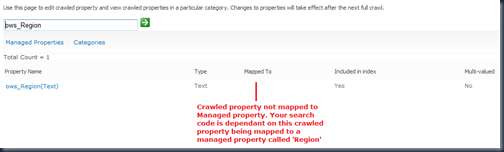
If you open SharePoint Central Admin –> Manage Service Applications –> Search Service Application –> Metadata Properties, we discover that some of the crawled properties which our search code rely on are not mapped to managed properties. In other cases some of the crawled properties do not even exist.

This is quite a common problem. Custom search code is dependent on specific configuration to be in place and there is always a risk during new deployments that either the provisioning code did not work properly or the SharePoint farm administrator did not configure the custom components correctly.
image

Obliviously we want to be SharePoint Heroes and see that our custom solutions works well after every new installation, so instead of relying on people or process let’s rather build a simple ‘success verification’ application which we can run on each new farm implementation to tell us whether all the dependencies are in place.

The source code from this post will generate the following output which will tell us exactly what the problem is:

image

Validate Mapped Properties (command-line tool):

This example was developed as a C# Console Application but you can use the code almost anywhere (perhaps a custom SharePoint configuration page is a good idea).

Add references to: Microsoft.Office.Server.Search and Microsoft.SharePoint

Add the following using statements:

using System;
using Microsoft.SharePoint;
using Microsoft.Office.Server.Search.Administration;
using Microsoft.Office.Server.Search.Query;
using Microsoft.Office.Server;
using System.Collections.Generic;
using System.Collections;
using System.Linq;
using System.Text;

I developed a function called ValidateMappedProperties which takes two input parameters. The one input parameter is the SPSite and the other input parameter is a list of MetadataProperty objects.

The ValidateMappedProperties function will iterate through the list of MetadataProperty objects and for each item query the SP Search Service to check whether the crawled property, managed property and property mapping are in place.

MetadataProperty class

First let’s look at the MetadataProperty class. This class allows me to instantiate a new MetadataProperty object and set the expected properties. It is not necessary for you to create such a class but it does make it easier to manage the input- and result operations.

namespace ValidateMappedProperties
{
    class MetadataProperty
    {
         public MetadataProperty()
        {
            this.PropertySet = Guid.Empty;
            this.MappedPropertyName = String.Empty;
            this.MappedPropertyType = 0;
            this.CrawledPropertyName = String.Empty;
            this.Verified = false;
            this.VerifiedMessage = String.Empty;
        }

        public MetadataProperty(Guid propertyset, string mappedpropertyname,  Int32 mappedpropertytype, string crawledpropertyname)
        {
            this.PropertySet = propertyset;
            this.MappedPropertyName = mappedpropertyname;
            this.MappedPropertyType = mappedpropertytype;
            this.CrawledPropertyName = crawledpropertyname;
            this.Verified = false;
            this.VerifiedMessage = String.Empty;
        }

        public Guid PropertySet { get; set; }
        public string MappedPropertyName { get; set; }
        public Int32 MappedPropertyType { get; set; }
        public string CrawledPropertyName { get; set; }
        public bool Verified { get; set; }
        public string VerifiedMessage { get; set; }

    }
}

ValidateMappedProperties function

Now let’s consider the ValidateMappedProperties function.

This function will query the Search Service Application for a list of crawled properties and a list of managed properties. It will then loop through the list of supplied MetadataProperty items and verify whether all the dependencies are in place.

public static void ValidateMappedProperties(SPSite site, List<MetadataProperty> managedproperties)
{
    try
    {
        SPServiceContext serviceContext = SPServiceContext.GetContext(site);
        SearchServiceApplicationProxy searchApplicationProxy = serviceContext.GetDefaultProxy(typeof(SearchServiceApplicationProxy)) as SearchServiceApplicationProxy;
        SearchServiceApplicationInfo searchApplictionInfo = searchApplicationProxy.GetSearchServiceApplicationInfo();
        SearchServiceApplication searchApplication = Microsoft.Office.Server.Search.Administration.SearchService.Service.SearchApplications.GetValue<SearchServiceApplication>(searchApplictionInfo.SearchServiceApplicationId);

        Schema sspSchema = new Schema(searchApplication);

        IEnumerable<CrawledProperty> _crawledProperties;
        _crawledProperties = sspSchema.QueryCrawledProperties(string.Empty, 1000000, Guid.NewGuid(), string.Empty, true).Cast<CrawledProperty>();
        ManagedPropertyCollection allprops = sspSchema.AllManagedProperties;

        foreach (MetadataProperty property in managedproperties)
        {
            property.Verified = true;
            property.VerifiedMessage = "Success";

            var crawledProperty = _crawledProperties.FirstOrDefault(c => c.Name.Equals(property.CrawledPropertyName));
                   
            if (crawledProperty == null)
            {
                property.Verified = false;
                property.VerifiedMessage = "Crawled Property '" + property.CrawledPropertyName + "' does not exist.";
                continue;
            }

            if (!allprops.Contains(property.MappedPropertyName))
            {
                property.Verified = false;
                property.VerifiedMessage = "Managed Property '" + property.MappedPropertyName + "' does not exist.";
                continue;
            }

            try
            {
                bool hasmapping = false;
                ManagedProperty mp;
                mp = sspSchema.AllManagedProperties[property.MappedPropertyName];

                List<CrawledProperty> mappedcrawledproperties = mp.GetMappedCrawledProperties(1000);
                foreach (CrawledProperty item in mappedcrawledproperties)
                {
                    if (item.Name == property.CrawledPropertyName)
                    {
                        hasmapping = true;
                        continue;
                    }
                }

                if (!hasmapping)
                {
                    property.Verified = false;
                    property.VerifiedMessage = property.MappedPropertyName + " is not mapped to crawled property '" + property.CrawledPropertyName + "'.";
                    continue;
                }
            }
            catch
            {
            }
        }
    }
    catch (Exception ex)
    {
        Console.WriteLine("Error: " + ex.Message);
    }
}

Request Method:

And, lastly the following code will illustrate how to define the list of expected MetadataProperty settings then call the ValidateMappedProperties function and then write the results to a console window:

static void Main(string[] args)
{
    string siteURL = args[0];

    List<MetadataProperty> managedproperties = new List<MetadataProperty>();
    Guid guidPropset = new Guid("00130329-0000-0130-c000-000000131346"); //this is the SharePoint columns propertyset ID.
                       
    managedproperties.Add(new MetadataProperty(guidPropset, "Division", 31, "ows_Division"));
    managedproperties.Add(new MetadataProperty(guidPropset, "Region", 31, "ows_Region"));
    managedproperties.Add(new MetadataProperty(guidPropset, "Language", 31, "ows_ContentLanguage"));
           
    using(SPSite site = new SPSite(siteURL))
    {
        ValidateMappedProperties(site,managedproperties);
               
        foreach (MetadataProperty item in managedproperties)
        {
            if (item.Verified)
            {
                Console.WriteLine("Succcess : " + item.MappedPropertyName);
            }
            else
            {
                Console.WriteLine("Failed   : " + item.VerifiedMessage);
            }
        }
    }
    Console.WriteLine("");
    Console.WriteLine("Operation completed. Press any key to contine...");
    Console.ReadKey();
}

The result will tell us where the problem lies:
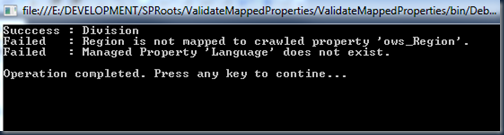
image

I can now use this information to make the necessary changes in Central Admin and run the tool again. I can repeat this process until I get success on all items:
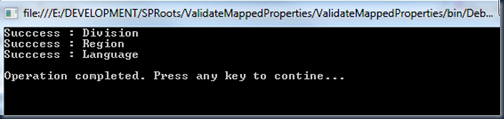
image

Now that I know all the dependencies are in place I am certain that, my custom search solution will work.

The screenshot below shows the results produced by running the example search code:

image

Enjoy!!

4

A Better way to attach custom SP2010 event receivers

I recently decided to take a deeper look into code which is used to programmatically attach or remove a SharePoint event receiver against a SharePoint list.

Using the SharePoint 2010 Object Model to programmatically add or remove an event receiver is really simple….and that is exactly the problem I came across. As developers we sometimes tend to have a ‘get the job done’ attitude and we do exactly that…we write code which executes without any problems and which delivers the expected results, so we consider the job done and we move on. If we want to build robust code we have to consider the different syntax options and implement what we believe is most relevant in the particular scenario.

So I took the C# code and made slight changes to it and now I get much better (and more granular) control. I am now able to programmatically set the SharePoint custom event receiver properties.

Scenario: I have a SharePoint 2010 site which contains a number of custom event receivers. These event receivers can be web scoped, site scoped, or list scoped (this example). Based on a specific action (trigger) I want to programmatically attach or remove the custom event receivers to / from their target. Examples of triggers are: a business rule (workflow), a custom page code behind (like a settings page), provisioning logic, etc. So, the code which manages the event receivers can live almost anywhere. In this example I make use of a custom provisioning feature to manage the event receivers. In other words if my custom provisioning feature is activated it will attach my custom event receivers and when the feature is deactivated it will remove the event receivers.

This is the old code before I made changes:

public override void FeatureActivated(SPFeatureReceiverProperties properties)
{
    using (SPWeb web = properties.Feature.Parent as SPWeb)
    {
        SPList list = web.Lists.TryGetList("test");
        if (list != null)
        {
            string classname = "SharePointDemoCode.Custom.EventReceivers.SetDealValuesReceiver";
            string assembly = "SharePointDemoCode, Version=1.0.0.0, Culture=neutral, PublicKeyToken=1ee7eff4c43a8776";
            web.AllowUnsafeUpdates = true;
            list.EventReceivers.Add(SPEventReceiverType.ItemAdded, assembly, classname);
            web.AllowUnsafeUpdates = false;
        }
    }
}

This code will attach the event receiver without any problems but if I use SharePointEventReceiverManager.exe to analyse the event receiver association I can see that the event sequence number set to 10000 (default value) and the event receiver name is empty.

image

So to have control over the above mentioned properties one can rather use the following code:

public override void FeatureActivated(SPFeatureReceiverProperties properties)
{
    using (SPWeb web = properties.Feature.Parent as SPWeb)
    {
        SPList list = web.Lists.TryGetList("test");
        if (list != null)
        {
            string classname = "SharePointDemoCode.Custom.EventReceivers.SetDealValuesReceiver";
            string assembly = "SharePointDemoCode, Version=1.0.0.0, Culture=neutral, PublicKeyToken=1ee7eff4c43a8776";

            SPEventReceiverDefinitionCollection eventReceivers = list.EventReceivers;
            SPEventReceiverDefinition neweventReceiver = eventReceivers.Add();
            neweventReceiver.Name = "Set Deal Values Receiver";
            neweventReceiver.Synchronization = SPEventReceiverSynchronization.Default;
            neweventReceiver.Type = SPEventReceiverType.ItemAdded;
            neweventReceiver.SequenceNumber = 25001;
            neweventReceiver.Assembly = assembly;
            neweventReceiver.Class = classname;
            neweventReceiver.Update();
        }
    }
}

From the image below you can see that the event sequence number set to 25001  and the event receiver name is ‘Set Deal Values Receiver’ – this is exactly what I wanted to have control over.

image

To remove / detach an event receiver use the following code:

public override void FeatureDeactivating(SPFeatureReceiverProperties properties)
{
    string classname = "SharePointDemoCode.Custom.EventReceivers.SetDealValuesReceiver";

    using (SPWeb web = properties.Feature.Parent as SPWeb)
    {
        SPList list = web.Lists.TryGetList("test");
        if (list != null)
        {
            IEnumerable<SPEventReceiverDefinition> eventReceiverResults = list.EventReceivers.Cast<SPEventReceiverDefinition>().Where(receiver => string.Equals(receiver.Class, classname, StringComparison.OrdinalIgnoreCase));

            if (eventReceiverResults.Any())
            {
                foreach (SPEventReceiverDefinition eventReceiver in eventReceiverResults.ToList())
                {
                    list.EventReceivers[eventReceiver.Id].Delete();
                }
            }
        }
    }
}

For a complete list of SPEventReceiverDefinition Members go to: http://msdn.microsoft.com/en-us/library/microsoft.sharepoint.speventreceiverdefinition_members(v=office.14).aspx

1

Get / Set field order for SharePoint 2010 list or library

When you build custom SharePoint solutions there are times when you need to create lists/libraries and fields (site columns or list fields) during run-time.

Using the SharePoint 2010 object model to programmatically create site columns, content types or list and library fields is really easy but you will find that the order in which the new fields appear on the item's view- and edit forms depends on the execution order of the code which provisioned the fields.

To illustrate this, imagine you have a document library called ‘Technology’ which contains 2 fields called ‘Name’ and ‘Title’.

An event triggers your code to add 2 new fields to the document library. First the code adds the field ‘Product’ to the library and then the code adds the field ‘Document Summary’ to the library. At this point your library will contain 4 fields in the following order: 1-Name, 2-Title, 3-Product, 4-Document Summary.

Later another event triggers your code to add a field called ‘Product Version’ to the same library. The result will be that the new field will be displayed in position 5 on the view and edit forms.  This is not ideal – as you can see from the image below, the position of the ‘Document Summary’ field should rather be below ‘Product Version’.

image

Fortunately there is an easy way to programmatically control the order in which fields appear on the list item view- and edit forms.

Many thanks to Rahul Sharma for his original post on this topic – I used the basics from his post http://www.directsharepoint.com/2011/11/change-column-order-in-new-and-edit.html and extended it to fit my needs.

The following code illustrates three functions:

  1. Get the display order of all visible fields for a specified list/library
  2. Get the display order of a specific list of fields for a specified list/library
  3. Set the display order of a specific list of fields on a list/library item’ view- and edit forms.

(The code is written in a simple console app. Remember to add a reference to Microsoft.SharePoint.dll and change your console app platform target to 64bit – and add proper exception management)

1-Get the display order of all visible fields for a specified list/library

Based on the scenario described above the result from the code below is:

image

static void Main(string[] args)
{
   using (SPSite site = new SPSite(args[0]))
   {
       Dictionary<string, int> actualfieldsorder = FetchFieldOrder(site.OpenWeb(), "Technology", "Document");
      
       foreach (KeyValuePair<string, int> pair in actualfieldsorder)
       {
          Console.WriteLine(pair.Key + " : " + pair.Value);
       }

       Console.WriteLine("");
       Console.WriteLine("Done");
       Console.ReadKey();
   }
}

private static Dictionary<string, int> FetchFieldOrder(SPWeb web, string listname, string contenttypename)
{
    Dictionary<string, int> fieldsorder = new Dictionary<string, int>();
    SPList list = web.Lists.TryGetList(listname);
    if (list != null)
    {
        SPContentType spct = list.ContentTypes[contenttypename];
            int positionindex = 0;
            foreach (SPField field in spct.Fields)
            {
                if (!field.Hidden && field.Reorderable)
                {
                        if (field.ShowInEditForm == null)
                        {
                                positionindex++;
                                fieldsorder.Add(field.InternalName, positionindex);
                        }
                        else
                        {
                            if ((bool)field.ShowInEditForm)
                            {
                                positionindex++;
                                fieldsorder.Add(field.InternalName, positionindex);
                            }
                        }
                }
            }
    }

    return fieldsorder;
}

2-Get the display order of a specific list of fields for a specified list/library

There might also be situations whereby you want to determine the display order for a specific list of fields in relation to each other. Example, I want to determine whether the ‘Product’ field will appear above the ‘Product Version’ field. I am not interested in any of the other fields.

The code below will return the following result:

image

static void Main(string[] args)
        {
            using (SPSite site = new SPSite(args[0]))
            {
                List<string> fields = new List<string>();
                fields.Add("Product");
                fields.Add("Product_x0020_Version");
                Dictionary<string, int> actualfieldsorder = FetchFieldOrder(site.OpenWeb(), "Technology", "Document",fields);

                foreach (KeyValuePair<string, int> pair in actualfieldsorder)
                {
                    Console.WriteLine(pair.Key + " : " + pair.Value);
                }

                Console.WriteLine("");
                Console.WriteLine("Done");
                Console.ReadKey();
            }
        }

private static Dictionary<string, int> FetchFieldOrder(SPWeb web, string listname, string contenttypename, List<string> checkfields)
{
    Dictionary<string, int> fieldsorder = new Dictionary<string, int>();
    foreach (string fieldname in checkfields)
    {
        fieldsorder.Add(fieldname, 0);
    }
    SPList list = web.Lists.TryGetList(listname);
    if (list != null)
    {
        SPContentType spct = list.ContentTypes[contenttypename];
        int positionindex = 0;
        foreach (SPField field in spct.Fields)
        {
            if (!field.Hidden && field.Reorderable)
            {
                if (field.ShowInEditForm == null)
                {
                    if (fieldsorder.ContainsKey(field.InternalName))
                    {
                        positionindex++;
                        fieldsorder[field.InternalName] = positionindex;
                    }
                }
                else
                {
                    if ((bool)field.ShowInEditForm)
                    {
                        if (fieldsorder.ContainsKey(field.InternalName))
                        {
                            positionindex++;
                            fieldsorder[field.InternalName] = positionindex;
                        }
                    }
                }
            }
        }
    }

    return fieldsorder;
}

3-Set the display order of a specific list of fields on a list/library item’ view- and edit forms

The following code will set the display order of the specified fields. Please note that the parameter ‘CustomOrder’ contains the fields which you want to reorder. The order in which the fields will appear on the view and edit forms is determined by the order in which you programmatically add the fields to the List variable '(CustomOrder). If you want you can change to code to have even more granular control.

image

The code below will result in the following:

image

static void Main(string[] args)
       {
           using (SPSite site = new SPSite(args[0]))
           {
               List<string> CustomOrder = new List<string>();
               CustomOrder.Add("FileLeafRef");
               CustomOrder.Add("Title");
               CustomOrder.Add("Product");
               CustomOrder.Add("Product_x0020_Version");
               CustomOrder.Add("DocumentSummary");

               SetFieldOrder(site.OpenWeb(), "Technology", "Document", CustomOrder);

               Console.WriteLine("");
               Console.WriteLine("Done");
               Console.ReadKey();
           }
       
       }

private static void SetFieldOrder(SPWeb web, string listname, string contenttypename, List<String> CustomOrder)
{
    try
    {
        SPList list = web.Lists.TryGetList(listname);
        if(list!=null)
        {
            Dictionary<Int32, String> listColumnReorder = new Dictionary<Int32, String>();
            int iCounter = 0;
            foreach (string item in CustomOrder)
            {
                if (list.Fields.ContainsField(item))
                {
                    SPField field = list.Fields.GetFieldByInternalName(item);
                    if (field != null)
                    {
                        if (!field.Hidden && field.Reorderable)
                        {
                            if (field.ShowInEditForm == null || (bool)field.ShowInEditForm)
                                {
                                    listColumnReorder.Add(iCounter, field.InternalName);
                                    iCounter++;
                                }
                        }
                    }
                }
            }
            String[] sFields = new String[listColumnReorder.Count];
            foreach (Int32 order in listColumnReorder.Keys)
            {
                sFields[order] = listColumnReorder[order];
            }
            ReOrderColumn(sFields, list.ContentTypes[contenttypename]);
       }
    }
    catch (Exception ex)
    {
        // add your own exception management here...
    }
}

private static void ReOrderColumn(String[] fieldInternalNameArray, SPContentType objContentType)
{
     try
     {
         SPFieldLinkCollection fldLinks = objContentType.FieldLinks;
         fldLinks.Reorder(fieldInternalNameArray);

         objContentType.Update();
     }
     catch (Exception ex)
     {
         // add your own exception management here...
     }
}

17

Resolve SharePoint Errors caused by SQL Express

Today I tested my bulk import tool as part of a data migration. The code in the custom developed tool is straight-forward and must move list items and documents from over 600 SharePoint 2007 sites into a single SharePoint 2010 site.

Soon after starting my tests I ran into SharePoint foundation problems.

Problem:

Whenever the code attempts to upload a file into SharePoint I got the following error:

The URL 'Document_2011/0000000zzz/Test Document.docx' is invalid.

It may refer to a nonexistent file or folder, or refer to a valid file or folder that is not in the current Web. Troubleshoot issues with Microsoft SharePoint Foundation.

image

I then tried to manually delete a file from the SharePoint site and received the following error:

The server has encountered the following error(s):

ExampleFile.pdf

Exception from HRESULT: 0x80131904

When I try to delete the entire document library I receive the following error:

Exception from HRESULT: 0x80131904

Troubleshoot issues with Microsoft SharePoint Foundation.

Investigation:

I investigated the SharePoint content database.

In Central Admin, go to Application Management and then to Manage Content Databases.

image

You can select the web application and view the details of the associated content database.

image

I then logged into SQL Server Management Studio and confirmed that the content database ran out of space. As you can see from the screenshot below, the database size is 4138.19 MB and there is only 0.13 MB free space. (ensure to log into the correct instance of SQL in order to see the content databases)

image

Cause:

When SharePoint 2010 is installed the user can select to perform a ‘Basic’ or default installation.

Selecting a ‘Basic’ installation is a big mistake, but unfortunately guys who are new to SharePoint might not be aware of the pitfalls.

When you installed SharePoint 2007 as basic, the installation used the Windows Internal Database, a version of SQL Express with no size limit, but in SharePoint 2010 the installation will be done on SQL Express which has a 4GB size limit.

SQL Express 2008 R2 has a 10GB size limit, but it might still not be enough.

This was exactly my problem –SharePoint was installed as a ‘Basic’ installation on a test environment and I was trying to upload a large number of files – around 5.3GB in total size. Once I reached the limit of 4GB SharePoint could not perform any operations on the database which requires more space.

Remember that even if you try to delete items from SharePoint, they are only moved to the recycle-bin so the used database space does not become available immediately.

Solution:

There are two ways to solve this:

1-You can either upgrade from SQL Express to SQL Server,

or

2- Implement EBS (External Blob Store - move the BLOB items out of the database onto a file system. For more information on this please see http://msdn.microsoft.com/en-us/library/bb802812.aspx )

I decided to go with option #1-Upgrade my SQL Instance from SQL Express to SQL Server 2008 R2.  The better architecture would be to go with EBS but I wanted to explore the database upgrade and do the EBS later.

Upgrade Steps:

1-Close SharePoint and Close SQL Server Management Studio.

2-Open Command Prompt and run the following command from the location where the SQL Server installation files are available to start the installation (upgrade) of SQL Server R2.

Setup.exe SKUUPGRADE=1

image

3-Proceed through the installation wizard and on the Installation window click on ‘Upgrade from SQL Server 2000, SQL Server 2005 or SQL Server 2008. 

image

4-Proceed through the wizard until you get to the ‘Select Instance’ page.

Remember when we inspected our database details in Central Admin we were able to see the SQL instance:

image

5-Now, in the SQL Upgrade wizard you have to select the same instance. You can see from the screenshot below that my “SHAREPOINT” instance was originally installed as ‘Express’ so this is the one which I have to select to be upgraded to SQL Server 2008 R2. 

image

6-Click on Next and continue through the wizard….When you get to the “Instance Configuration” page pay careful attention to ensure that all the details are correct.

image

8-Click on Next and proceed through all the pages to complete the all the installation wizard steps.

9-Once completed review the results to confirm that the upgrade was successful.

 image

10-After this perform an IISReset.

Verify Success:

I viewed the properties of my upgraded database and immediately noticed that the space available was increased from 0.13MB to 1.02MB.

image

Also, after this I was able to add more content to SharePoint and grow the database size beyond 4GB..

image

Enjoy!!

Thanks to Todd Klindt - http://www.toddklindt.com/blog/Lists/Posts/Post.aspx?ID=55 for his contributions.

0

SPFarm.Local is null (x86 vs. x64)

This is one of those silly little mistakes which we very often overlook…and believe it or not, I have found many forums and blog posts where developers ask for help on this.
I wanted to work with the SPFarm.Local object earlier this week and forgot that SharePoint 2010 targets the 64bit platform …duh… so when I tried the following code:
private void cmdCreateWebApp_Click(object sender, EventArgs e)
        {
            int myPort = 999;

            SPFarm farm = SPFarm.Local;
            SPWebApplicationBuilder webAppBuilder = new SPWebApplicationBuilder

            (SPFarm.Local);
            webAppBuilder.Port = myPort;
            SPWebApplication newApplication = webAppBuilder.Create();
            newApplication.Provision();

            SPSite mySiteCollection = newApplication.Sites.Add("/", 
           @"Mydomain\MyAdminUserName", "MyAdminUserEmail@CompanyName.co.za");
            mySiteCollection.Close();
        }

I kept getting an exception and found that SPFarm.Local remains null.
image
The problem was that my VS2010 project was set to target a x86 platform and not the x64!!
So, I opened my project properties and changed the platform target to x64.
image
Recompiled my code and ran it and it worked like a charm !
image
Always remember guys…. X64 !!!!!

2

WSPBuilder Error x86 vs. x64 (SP 2007)

Today I came across 2 errors:

  1. Feature 'featureid' is not installed in this farm, and can not be added to this scope.
  2. Cannot add the specified assembly to the global assembly cache: cablib.dll.
I tried to deploy a WSP solution which we created a few weeks ago into a test SharePoint 2007 (MOSS) environment.
I am using the CodePlex.SharePointInstaller (Setup.exe) and my solution.wsp file.
This works well if I install it on my dev environment, but as soon as I try to install it on the test environment I get the following error at the very last step of the installation wizard.
Error: Cannot add the specified assembly to the global assembly cache: cablib.dll.
image
I checked the 12 hive and my feature files are all there, but as soon as I try to activate a feature which contains an event receiver (assembly should be in GAC) I get the following error:
Feature 'dc618366-db0a-4912-88d1-ad59e55bac90' is not installed in this farm, an
d can not be added to this scope.
After a bit of head-scratching I realized something. The solution was built on a 64bit dev environment and I am trying to install into a 32bit test environment.
So this is what I had to do to get it to work:
In Visual Studio, open you WSPBuilder project and go to project –> properties. Then change the Platform Target to x86.
image
Save your project and build it.
Reinstall the WSP (run the SharePoint Solution Installer for your WSP to remove the old version and then run it again to install the new version.)
This time the assemblies can be deployed to the GAC and you will now be able to activate your feature !!!
Enjoy !

9

SP2010 Basics: Client Object Model

This post is part of the series which I will share in order to help you understand the new architecture of SharePoint 2010 and the impact thereof on you as developer.

This week I had the opportunity to be a speaker at the AvePoint Interactive Theater at Teched Africa 2010.

I decided to present an understanding of the SharePoint 2010 Managed Client Object Model. This is an introduction to how the Client Object model works, the benefits it brings and some very important considerations you have make.

So...lets get cracking...

The Standard SharePoint 2007 Implementation
This diagram shows the standard communication between a SharePoint client browser and the server in a non customized environment.
You can see that there is nothing special required on the client side. Simple comms to the server and then some execution there.


What do we want to achieve?
Sometimes we want to extend SharePoint by adding functionality which will execute on the client-side. This means we want some mechanism to execute code on the client-side but then still interact with SharePoint data and functionality which reside on the server.
Examples of this will be:
1-Building Silverlight components,
2-Build web parts which contains client side code like ajax or silverlight,
3-Extend an existing Windows forms application which contains client-side code.

The Challenges in SharePoint 2007
The first challenge we faced in SharePoint 2007 was that if we wanted to extend an existing application which runs on the client side. In order to utilize SharePoint you had to use the native SharePoint Web Services or build new custom web services which will be hosted on the SharePoint server. Remember that custom web services will use the server object model. Deploying custom web services onto the server creates an administrative overhead and introduces a risk.


The second challenge is in building silverlight applications which execute client-side.


So it is very obvious that we needed some mechanism to build client-side code which has an awareness and access to the SharePoint Server Object Model.


Microsoft helped solve this problem for us by introducing the SharePoint 2010 Client Side Object Model. Now we have a mechanism to extend SharePoint functionality through client-side code..without using SharePoint Web Services !!!


How does the Client-Side Object Model work?


From the diagram you will see that we have the client on the left and the server on the right. The server contains the SharePoint Databases and the Server-side Object model.
Between the server and client is a new WCF service called Client.svc
When you reference the client-side object model in your code (example later in this post) , the internal proxy class takes care of sending requests and review responses via the WCF Service.

The very important thing to notice here is that we dont want to send requests to the server and get a response for almost every line of code we execute. So how it is designed to work is that in your code you will construct the objects and execute standard SharePoint OM functions. The objects will be empty structures without properties and without data, and the functions will not execute right away.
Then at logical points you bundle everything together and send it to the server for processing. The server will then unpack your bundled code and execute it in the correct order and return JSON to your client-side. Your objects will then be populated with data and properties and you can carry on executing more code. The important concept to understand is that you bundle empty objects together and send to the server when ready for processing.

The SharePoint Foundation 2010 managed client model consist of Two Assemblies that contains five namespaces.

There are 3 types of client object models.
1-Managed Client Object model
2-Silverlight Client Object model
3-ECMAScript Client Object model

1-Managed Client Object model:
This is used to extend Windows Form applications, services, WPF applications, console applications etc.
It consist of Microsoft.SharePoint.Client.dll (282 kb) and
Microsoft.SharePoint.Client.Runtime.dll (146 kb)


2-Silverlight Client Object model:
This is used to Silverlight Applications.
It consist of Microsoft.SharePoint.Client.dll (282 kb) and
Microsoft.SharePoint.Client.Runtime.dll (146 kb)


3-ECMAScript Client Object model:
JavaScript in our SharePoint user interface.
It consist of:
CUI.js (344 kb)
SP.js (381 kb)
SP.Core.js (13 kb)
SP.Ribbon.js (208 kb)
etc...

You will notice that there are a few differences between the objects in the Client-Side Object model and the Server-side Object model:


Lets build some simple code:
Create a new Visual Studio 2010 Console application
Add a references to:
Microsoft.SharePoint.Client.dll and
Microsoft.SharePoint.Client.Runtime.dll
ensure your console app code look as follows:

using System;
using Microsoft.SharePoint.Client;
class DisplayWebTitle
{
static void Main()
{
 ClientContext clientContext = new ClientContext("http://ltp-21:17819/");
 Web site = clientContext.Web;
 clientContext.Load(site);
 clientContext.ExecuteQuery();
 Console.WriteLine("Title: {0}", site.Title);
}
}

Press control+F5 and see your code execute.

Lets analyze the code:
You inform the managed client OM about the operations that you want to take.
This includes accessing the values of properties of objects (for example, objects of the List class, ListItem class, and Web class), CAML queries that you want to run, and objects such as ListItem objects that you want to insert, update or delete.
Then you call the ExecuteQuery method.

Only when you call the ExecuteQuery will the objects be bundled up and sent to the server for processing.
No network traffice occurs before then.

Another Example:
Create a new Visual Studio 2010 Console application
Add a references to:
Microsoft.SharePoint.Client.dll and
Microsoft.SharePoint.Client.Runtime.dll
ensure your console app code look as follows:

using System;
using Microsoft.SharePoint.Client;
class Program
{
  static void Main()
  {
 ClientContext clientContext = new ClientContext("http://ltp-21:17819/");
 List list = clientContext.Web.Lists.GetByTitle("Announcements");
 CamlQuery camlQuery = new CamlQuery();
 camlQuery.ViewXml = "<View/>";
 ListItemCollection listItems = list.GetItems(camlQuery);  clientContext.Load(list);
 clientContext.Load(listItems);
 clientContext.ExecuteQuery();
 foreach (ListItem listItem in listItems)
  Console.WriteLine("Id: {0} Title: {1}", listItem.Id,  listItem["Title"]);
  }
}

Press control+F5 and see your code execute.

Again, the code will be bundled up and only be sent to the server for processing when the .ExecuteQuery() run.
This means that although you called the list.GetItems the CAML did not execute at that time.
When you call the .ExecuteQuery(), the server will receive your code, unpack it and execute it in the correct sequence and return the objects populated with data and properties.... all processed on the server side... and ready to be further used on the client-side !!!!

Amazing, isnt it ! Well I hope this gives you a nice overview of the Client Side Object model in SharePoint 2010.

Have Fun !